

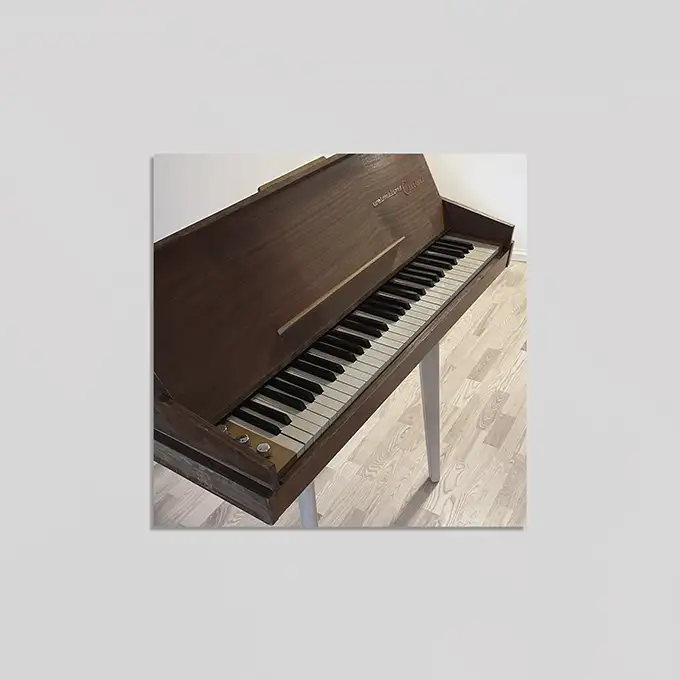

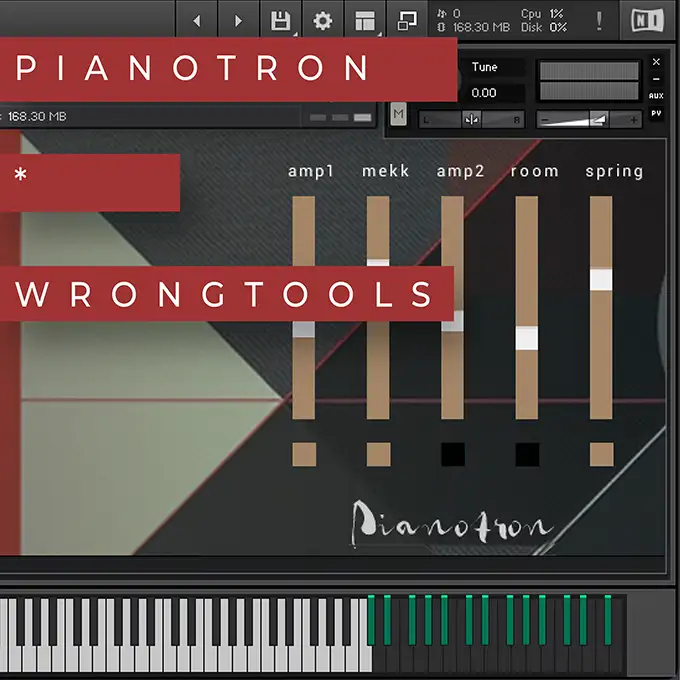
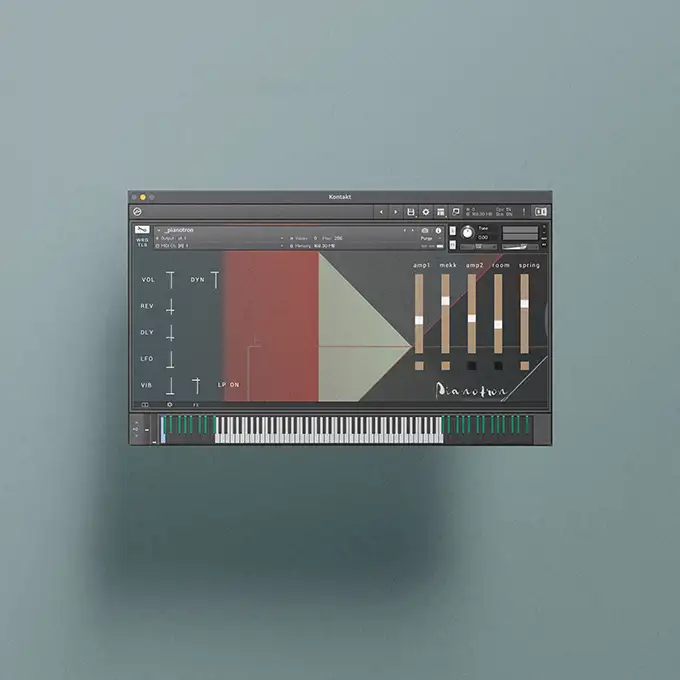
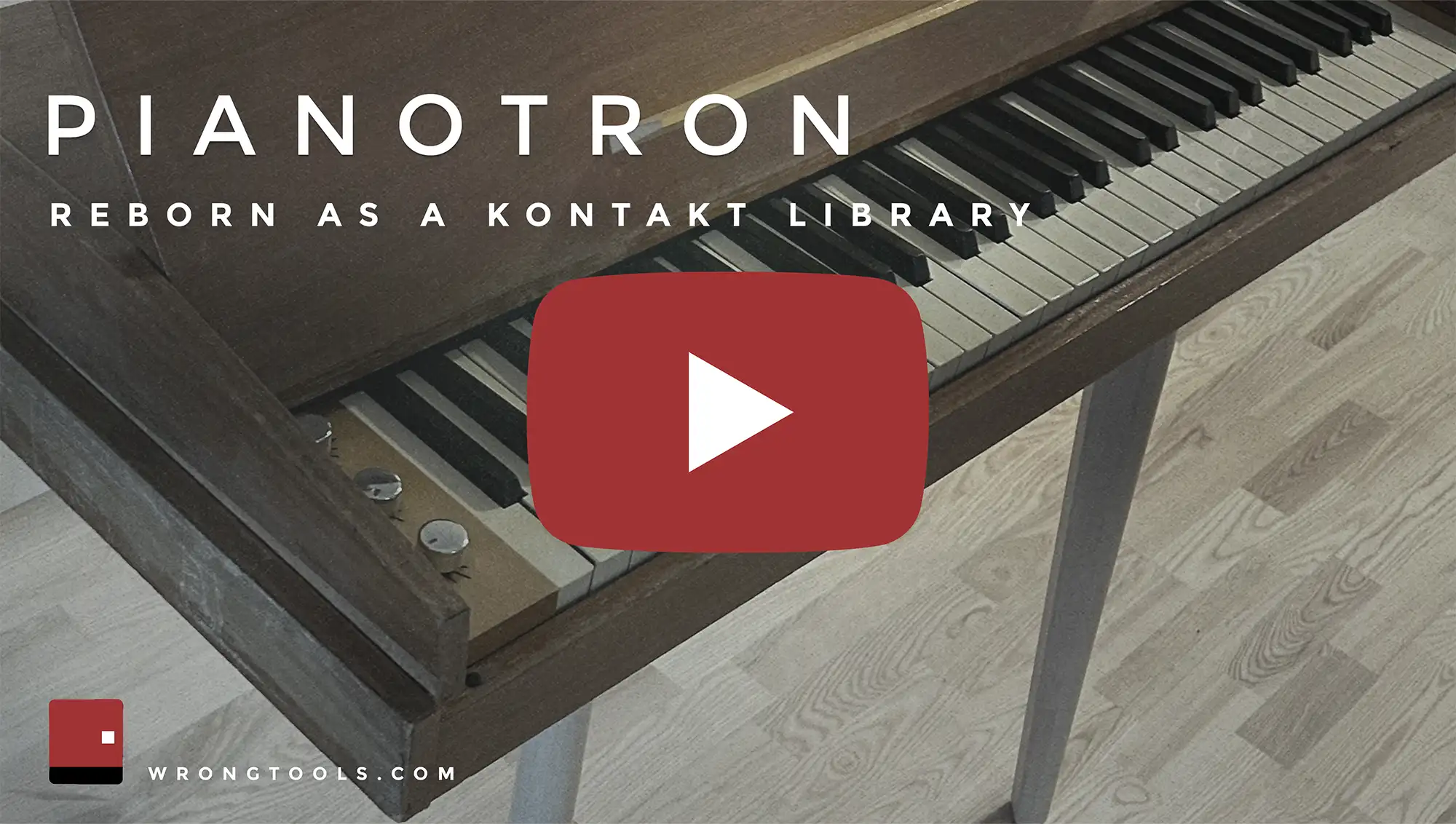
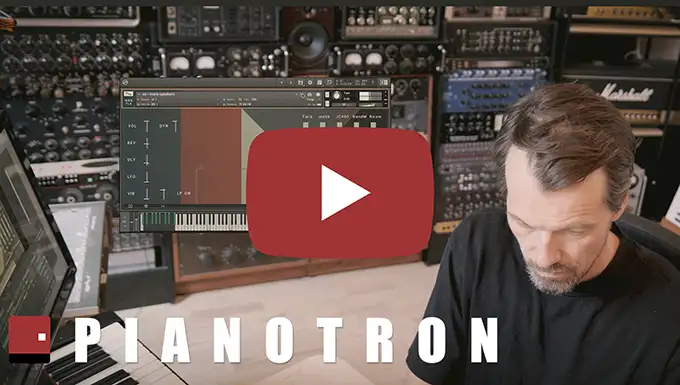
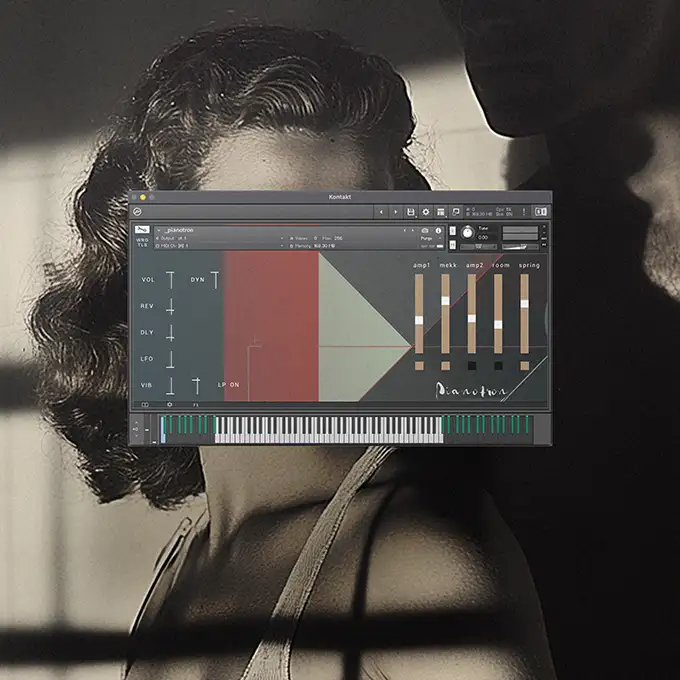


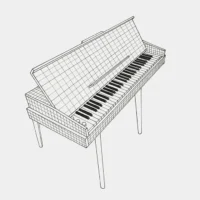
It is a Kontakt sample library that recreates the sound and character of the vintage Selmer Pianotron, an early electric piano from the 1960s, also branded as the Weltmeister Claviset .
The direct sound, coming from the instruments sounds crappy, so we recorded it through some vintage hardware and some great amps, and recorded from there. Before mapping in everything to Kontakt.
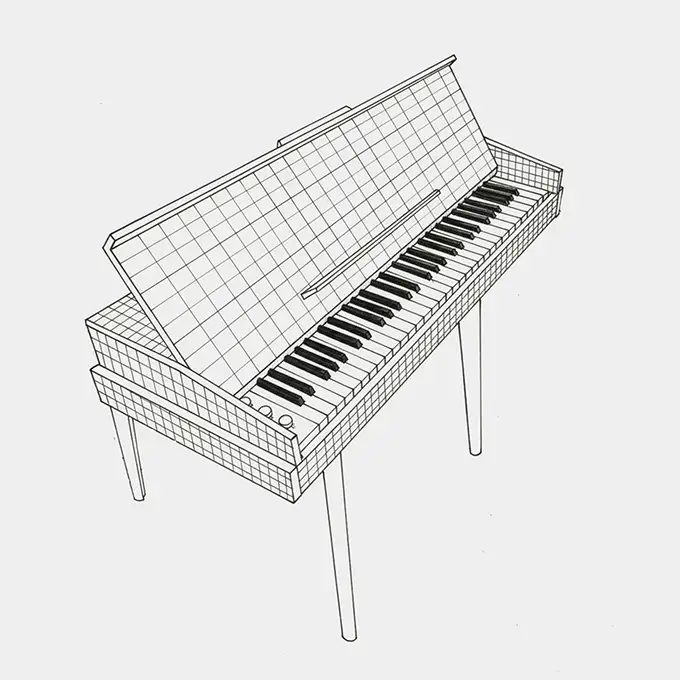 It’s an East German electromechanical piano from the 1960s. Unlike the more famous Wurlitzer or Rhodes, it uses a plucking mechanism where a plastic mechanism pluck metal reeds (flat tines) whose vibrations are captured by electromagnetic pickups.
The Weltmeister Claviset remains a fascinating, lesser-known entry in the history of electric keyboards, prized by enthusiasts for its unique sonic character and its origin as a unique artifact of East German musical technology.
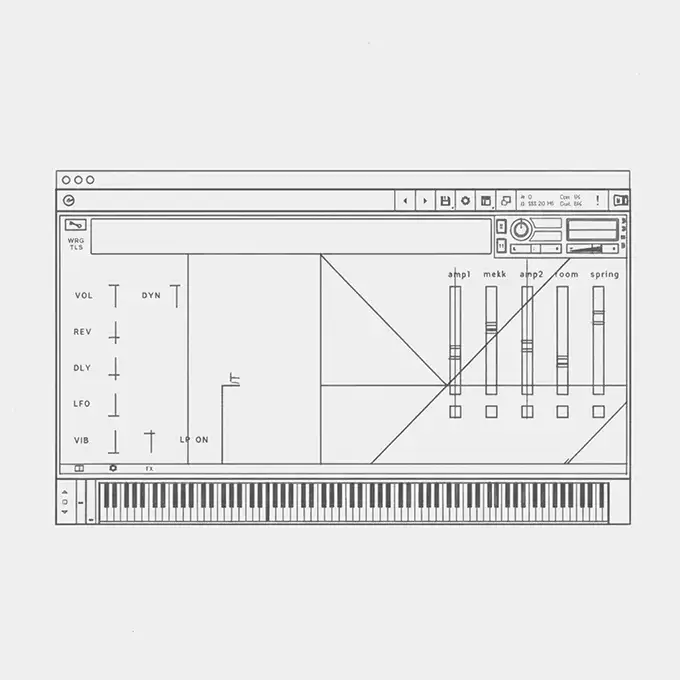 Multiple velocity layers and round robins for a dynamic, realistic performance.
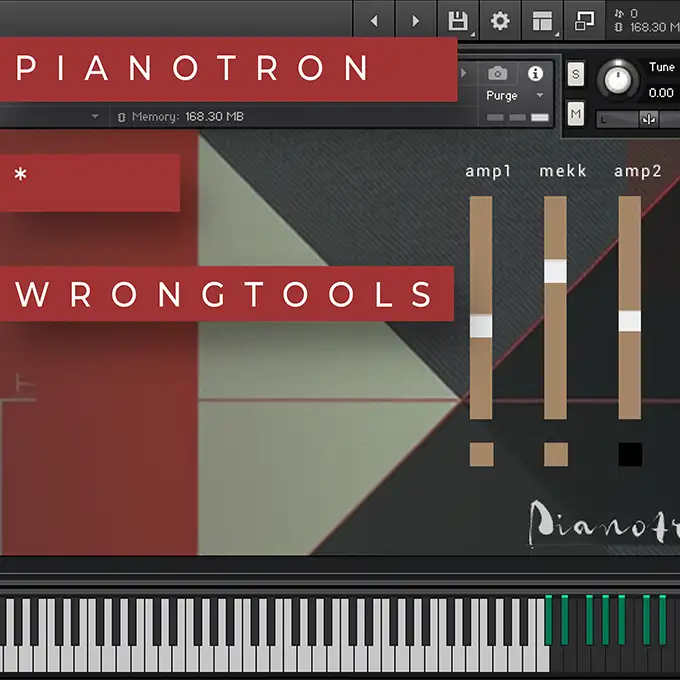
Advanced sound-shaping tools and effects within the Kontakt interface, often including custom-made processing and effects common to Wrongtools libraries.
YES! The pianotron was also sampled with other techniques. like tapping on the pickups and fingerplucked on the tines.
These have metamorphosed to a variety of shapes and folded into a folder of additional kontakt patches. Supersounding patches suitable for filmmusic and more weird musical genres and styles.
Wrongtools is in the field of inventive one-of-a-kind musical instruments explorations.
To sample this strange keyboard, seemed to fit nicely into our catalogue. We question, explore, challenge and discover. We only make sample libraries that we wish existed, and that we need ourselves.
Yes. All Wrongtools libraries, including the Pianotron, require the full retail version of Native Instruments Kontakt. version 6.4.2 and newer. It will not work with the free Kontakt Player.
 You download Native Instruments’ Kontakt software through their Native Access application. Info here
These are prepared pianos, but prepared in a way that you can play with the same kind of sound over the whole piano keyboard.
Built for those who defy norms, this experimental piano library transforms the acoustic grand piano into a playground of unusual piano sounds. Perfect for free thinking, genre defying composers looking to inject their work with organic sounds in the cross section between weirdly tuned-percussion and piano.
Composers embarking on this sophisticated journey are met with an exquisite raw palette of piano sounds and experimental piano timbres, resonating with unparalleled uniqueness.
- Instant download
- Resizable UI
- Channel strips
- Custom in-built IRs
- Online User Handbook
- Randomizing Capabilities
- Round-robin options
- Sample Start options
- Rich textures, powerful tones
- Sound-shaping tools
Wrongtools instruments are generally compatible with the NKS (Native Kontrol Standard) when used with the full version of Kontakt. This allows you to view and control some parameters on NKS-compatible hardware like Native Instruments Komplete Kontrol or Maschine.
You will receive an email with a secure download link after your purchase is complete. Wrongtools typically uses reliable distribution networks like Amazon S3 for speedy downloads.
No. Since it is not a “Kontakt Player-compatible” library (it requires the full version), it will not be permanently added to the Libraries tab and does not require activation via Native Access. You must load the instrument via the Files or Quick-Load tab in Kontakt.
If you would like to make thumbs or images yourselves from the library, you may find high-res images here
We collect and upload high-res images of our releases to this url : https://wrongtools.com/press
How do I check for and install updates?
Keeping your libraries up to date ensures you have the latest features and bug fixes. Here is how to manage your Wrongtools versions:
1. Finding Your Current Version
To see which version you are currently running:
• Open a patch in the Kontakt instrument interface.
• Click the Book Icon located in the bottom-left corner.
• The version number will be displayed at the bottom-right of the pop-up window.
2. Checking for Available Updates
Compare your version number against the current release listed in the product documentation on wrongtools.com. If the site lists a higher number (e.g., v2.1 vs. your v1.1), an update is available.
3. How to Download the Update
We don’t use incremental patches; we provide the full, updated library for a clean install.
• Access your original purchase link from your confirmation email.
• Alternatively, log in to Your Account to find the latest download links. These links always point to the most recent version.
4. Installing the New Version
1 Backup: Before making changes, we recommend keeping a copy of your old library folder until you’ve confirmed the update works perfectly in your setup.
2 Replace: Delete the old library folder and replace it with the newly downloaded one.
3 Relink: If Kontakt asks for the file location, simply point it to the new folder.
Pro Tip: Always finish any active projects before updating, or keep the old version folder renamed (e.g., “_Old”) just in case you need to recall a specific setting from a previous build.
-


Bell-tone piano
€28 -
Celesta Duet
€28 -
Dulcitone Pro
€48 -
The Silk Rhodes
€28 -
Mule Piano
€78 -
Vinyl Piano
€38 -
Pianotron
€28 -
Putty Grand
€78





Updating…